 Caplio
Capture it. Find it. Turn it into something useful.
Capture screenshots on your Mac, keep related captures together in Sessions, search text inside screenshots and images, and turn what you collect into PDF or Word documents.
Screenshot capture is free.
Your visual library stays on your Mac.
Capture
Capture an area or the full screen with customizable global shortcuts. Screenshot capture is free.
Sessions
Start a Capture Session for a class, meeting, research task, or project so related captures stay together.
Search & create
Search text inside screenshots and images, then turn selected captures into PDF or Word documents.
Capture → Sessions → Search → Create
A private visual workflow for macOS — from the moment you capture to the document you share.
Screenshot capture is free.
Capture without breaking your flow
Capture an area or your full screen directly with Caplio. Customizable global shortcuts let you capture without interrupting what you're doing.
Screenshot capture is free — you do not need Caplio Pro just to take screenshots.
Area or full screen
Customizable global shortcuts for capture without leaving your current app.
Keep a class, meeting, or project together
Start a Capture Session for a class, meeting, research task, project, or any focused piece of work. Related captures stay connected to the Session so you can find the whole context later.
Name Sessions yourself, revisit them later, filter images by Session, and reassign captures when needed. Start Session → Capture → Search → Create Document.
Capture Sessions
A context for related captures — not a Timeline grouping mode.
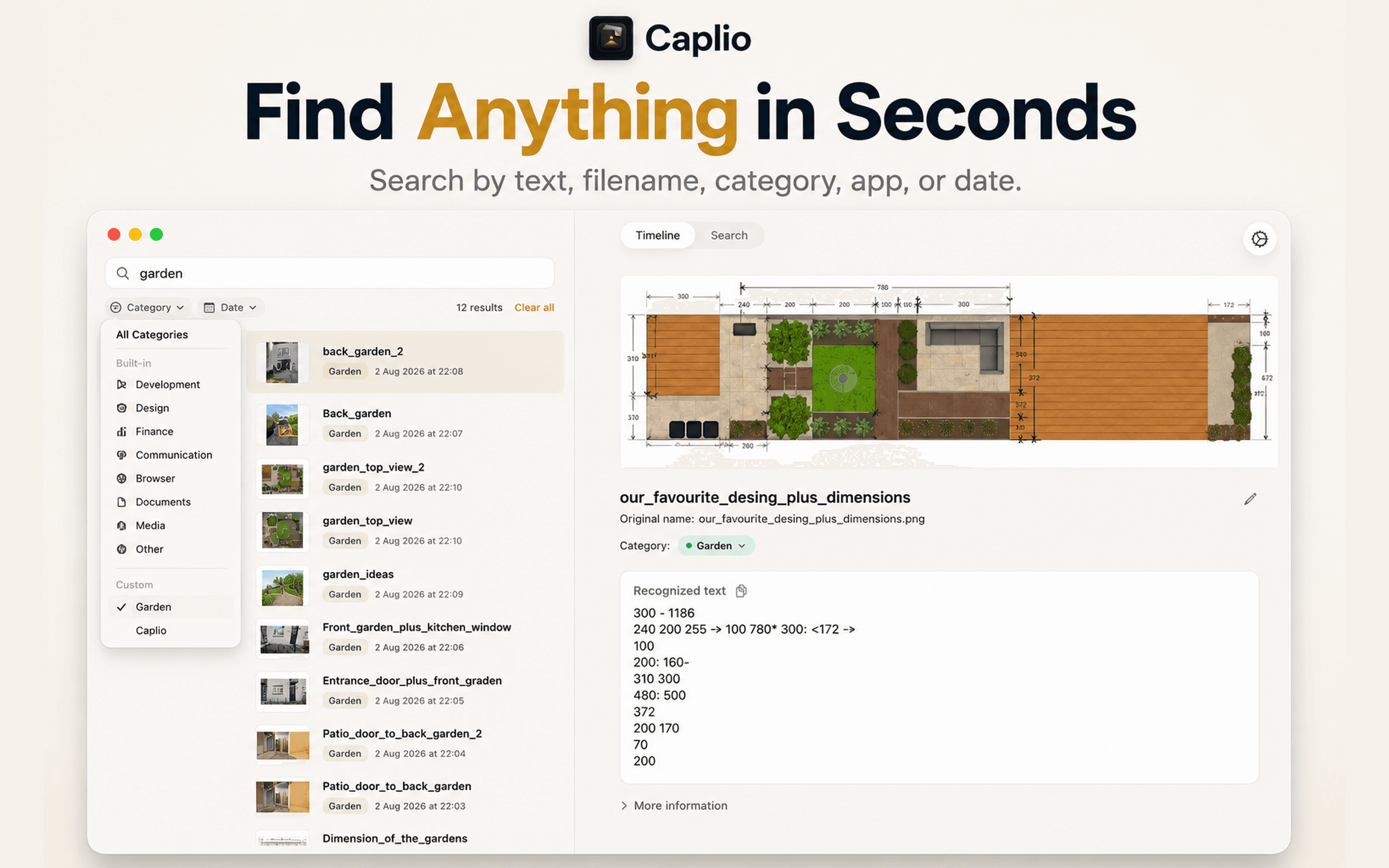
Find anything you captured
Caplio uses on-device OCR to make screenshots and images searchable. Search recognized text along with filenames, titles, categories, dates, and app information where available.
Local OCR and index-based search — not cloud AI, semantic search, or LLM search. Search screenshots on Mac without uploading your library for processing.
Turn captures into documents
Select screenshots and images, put them in the order you want, review the extracted text, and create a PDF or editable Word document.
Choose Image + Text, Image Only, or Text Only. Useful for classes, meetings, research, project documentation, and visual notes. You can edit OCR draft text for the document without changing the underlying library OCR.
PDF or Word
Image + Text, Image Only, or Text Only — you control the export.
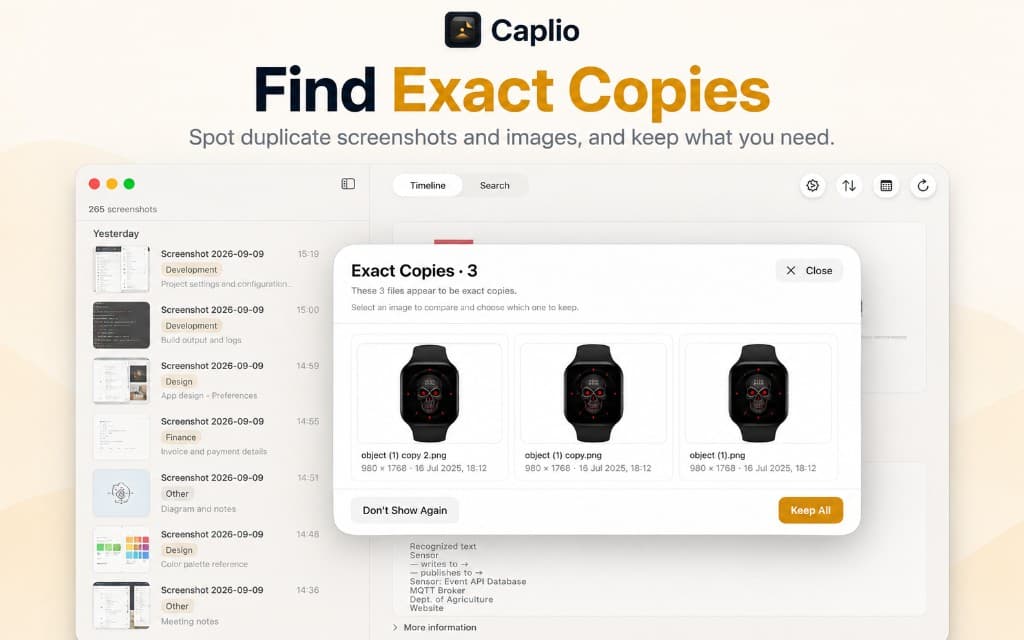
Find similar images and exact copies
Multiple captures of the same screen can quickly clutter your library. Caplio brings visually similar images and exact copies together so you can review them side by side and decide what you want to keep.
Nothing is deleted automatically. You decide what stays.
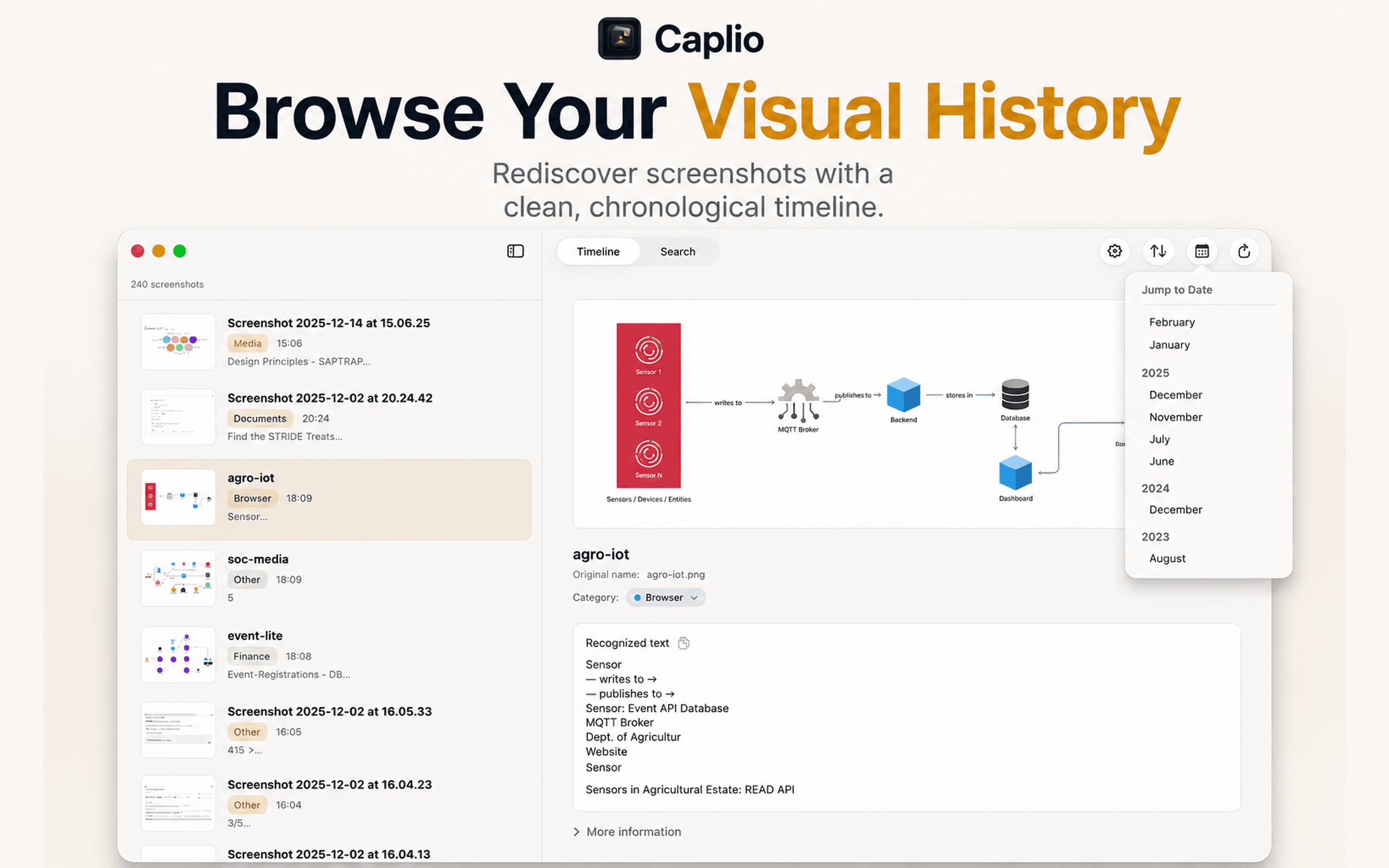
Your searchable visual library
Add folders you choose and browse screenshots and images in a clean Timeline instead of digging through Finder. Supported types include PNG, JPEG, HEIC, TIFF, and WebP.
Open originals, use Quick Look, copy or share, and drag images into compatible Mac apps.
Organize files on your terms
Caplio can optionally organize your original files on disk by Date, Category, or Capture Session.
By default, Caplio indexes images from the folders you choose without importing duplicate copies. Organization is optional and under your control — changing a Session does not by itself move files on disk.
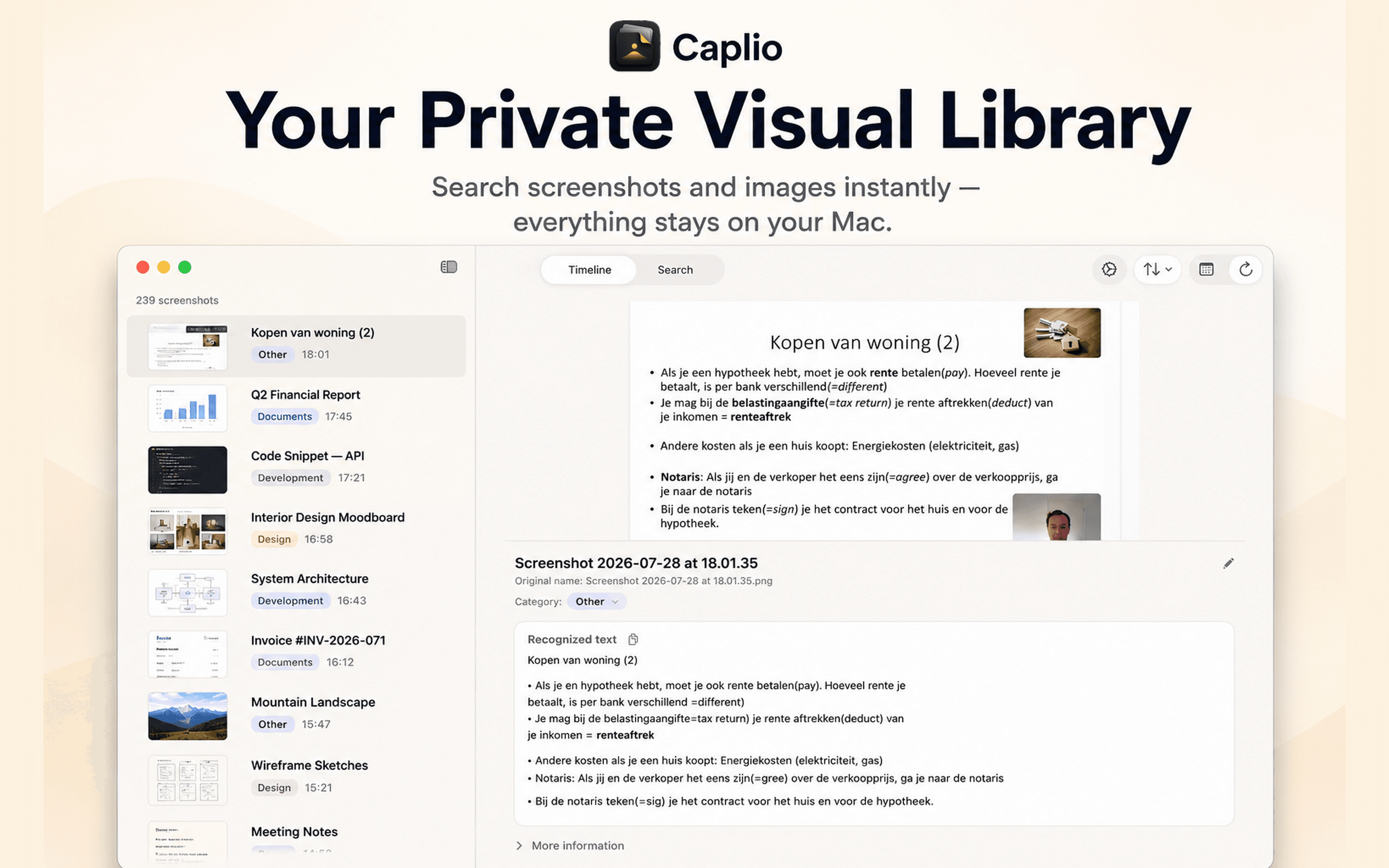
Private by design
Your visual library stays on your Mac. OCR, search indexing, and document processing for your library run locally.
On-device OCR and search
Text recognition and search indexing run on your Mac. Images, OCR text, and search queries are not uploaded for processing.
Your visual library stays local
Filenames, folder paths, Capture Session names, and document content are not uploaded for OCR, search, or remote library processing.
Privacy-preserving analytics
Caplio may send limited anonymous product-usage events to improve the app. Analytics do not include images, OCR text, search terms, filenames, paths, Session names, or document content.
Free vs Pro
Start with 7 days of Caplio Pro. Keep screenshot capture free forever.
New users get full Caplio Pro access for 7 days. After the trial, screenshot capture stays free — no subscription required just to keep capturing. Caplio Pro unlocks the searchable visual library, on-device OCR search, Similar Images, Document Builder, and advanced file organization.
Caplio Pro is $0.99/month, $5.99/year, or $9.99 Lifetime (one-time).
Prices shown in USD. App Store pricing may vary by country or region.
Built for real Mac workflows
Capture → Session → Search → Document — for classes, meetings, research, design, and development.
Capture screenshots during online classes
Capture lecture slides and notes during online classes on Mac with Caplio. Keep related captures in a Capture Session, search them later, and export a PDF or Word document.
Organize meeting screenshots on Mac
Capture and organize meeting screenshots on Mac with Caplio. Use Capture Sessions, on-device search, and Document Builder to keep decisions and visuals together.
Turn screenshots into PDF on Mac
Turn screenshots into a PDF on Mac with Caplio Document Builder. Select and reorder images, choose Image + Text, Image Only, or Text Only, and export.
Organize screenshots by Capture Session
Use Caplio Capture Sessions to keep related screenshots together for classes, meetings, research, and projects. Filter, revisit, and reassign captures by Session.
Screenshot workflows for designers
Capture UI references, keep project Sessions, search visual notes, find similar captures, and export design documentation with Caplio on Mac.
Screenshot workflows for developers
Capture error states, keep debugging Sessions, search text inside screenshots, and turn relevant captures into docs with Caplio on Mac.
Frequently asked questions
Clear answers about free screenshot capture, Capture Sessions, documents, Caplio Pro, and privacy.
- What is Caplio?
- Caplio is a private visual workflow for macOS: Capture → Sessions → Search → Organize → Create. Capture screenshots, keep related captures in Sessions, search text inside images with on-device OCR, and turn selected captures into PDF or Word documents. Your visual library stays on your Mac.
- Can Caplio take screenshots?
- Yes. Caplio can capture an area or the full screen directly using customizable global shortcuts. Screenshot capture is free.
- Do I need Caplio Pro to take screenshots?
- No. Screenshot capture is free forever. You do not need Caplio Pro just to take screenshots. Caplio Pro unlocks the searchable visual library and advanced organization and document workflows.
- What are Capture Sessions?
- Capture Sessions help keep related captures from a class, meeting, research task, project, or other activity together. You name Sessions yourself, can revisit them, filter images by Session, and reassign captures when needed.
- Can Caplio turn screenshots into a PDF?
- Yes. With Document Builder, you can select and reorder images and export a document using Image + Text, Image Only, or Text Only.
- Is Caplio private?
- Your visual library stays on your Mac. OCR, indexing, and search run on-device. Caplio does not upload your images, OCR text, or search queries for library processing. Caplio may send limited privacy-preserving anonymous usage analytics that do not include library content. See the Privacy Policy for details.
- Does Caplio have a free trial?
- Screenshot capture is free forever. Caplio also provides a 7-day trial of Caplio Pro on your Mac so you can explore the searchable visual library and advanced organization and document workflows. After the trial, you can keep capturing for free without a subscription. Purchase and subscription options are available through the app and Mac App Store.
- Where can I download Caplio?
- Caplio is available for macOS from the official Mac App Store listing.
More answers on the Support page.
Get Caplio on your Mac
Capture screenshots for free. Keep related captures in Sessions, search text inside images, and turn what you collect into documents. Your visual library stays on your Mac.